Introduction to NodeJS
NodeJS is an open-source, cross-platform, JavaScript runtime environment that executes JavaScript code outside a web browser. Many developers are turning to NodeJS for building server-side applications and services due to its performance and scalability. If you want to work with NodeJS on a Windows machine, you’re in the right place.
This guide will walk you through the steps to install NodeJS on Windows, ensuring you’re set up to start developing with this powerful framework. By the end, you’ll be ready to create your first NodeJS application!
Why Use NodeJS?
NodeJS stands out for several reasons, particularly its non-blocking architecture. This allows it to handle multiple connections with high efficiency, making it particularly suitable for applications that require real-time data processing, like chat applications or live updates. It’s also quite popular for creating RESTful APIs, which serve as the backbone for modern web applications.
Moreover, NodeJS utilizes JavaScript, which means you can use a single programming language for both client-side and server-side development. This decreases the learning curve for new developers and speeds up the development cycle. For example, a full-stack developer can quickly switch context between the frontend and backend, boosting productivity.
System Requirements
Before diving into the installation of NodeJS on Windows, let’s check if your system meets the necessary requirements. Generally, you’ll need a Windows version that is still supported by Microsoft, such as Windows 10 or later.
Additionally, ensure you have administrative privileges on your machine. This is required for installing software and managing environment variables. If you’re unsure about your Windows version, you can find it by typing ‘winver’ in the Run dialog.
Downloading NodeJS
To begin the installation process, you must first download the NodeJS installer from the official website. Head over to nodejs.org where you’ll find two versions available: the LTS (Long Term Support) version and the Current version. For beginners, it’s generally recommended to go with the LTS version, as it is more stable and ideal for production environments.
Once you navigate to the downloads section, select the Windows Installer (.msi) file suitable for your system architecture (32-bit or 64-bit). When in doubt, most machines today run on 64-bit, but you can check your system properties to confirm.
Installing NodeJS Step-by-Step
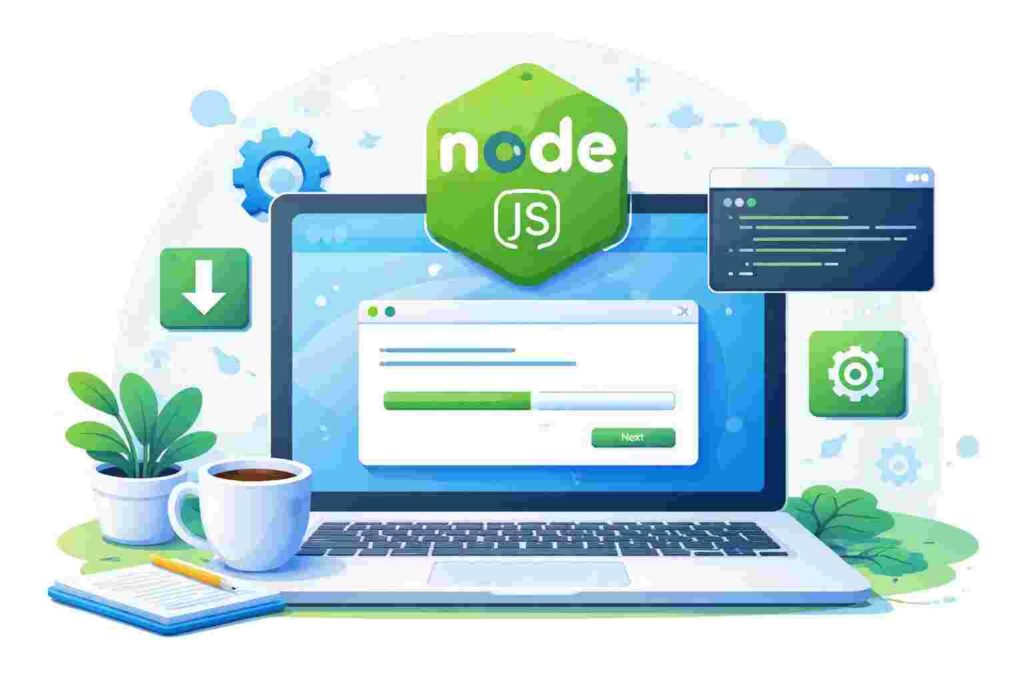
With the NodeJS installer downloaded, it’s time to install it. Locate the .msi file in your downloads folder and double-click it to start the installation process. A setup wizard will guide you through the steps.
1. Accept the License Agreement.
2. Choose the installation path or stick with the default.
3. Select components: ensure 'Node.js runtime,' 'npm package manager,' and 'Add to PATH' are selected.
4. Complete the installation.
Each of these steps ensures that NodeJS is properly installed and configured. Accepting the license agreement is typical, and choosing the default options is usually sufficient for most users. The second and third steps are crucial—they ensure that you’ll have access to both NodeJS and npm from the command line.
Verifying the Installation
After installation, it’s good practice to verify that NodeJS and npm (Node Package Manager) are installed correctly. You can easily do this via the Command Prompt. To open the Command Prompt, type cmd in the Windows search bar and hit Enter.
node -v
npm -v
When you execute these commands, you should see the version numbers for both NodeJS and npm. If they display correctly, congratulations! You’ve successfully installed NodeJS on your Windows machine.
Setting Up Your First NodeJS Application
Now that you’ve installed NodeJS, it’s time to set up a basic application. Create a new folder on your desktop called MyFirstApp, and navigate into it using the Command Prompt. Use the following command:
mkdir MyFirstApp
cd MyFirstApp
This command creates a new directory and moves you into it. Next, initialize a new NodeJS project by using npm:
npm init -yThe `-y` flag automatically answers ‘yes’ to all prompts, creating a default package.json file, which is essential for managing your NodeJS project’s dependencies.
Adding Your First Script
In this section, we’ll create a simple web server using NodeJS. Open a text editor, and create a file called server.js in your MyFirstApp folder. Add the following code:
const http = require('http');

const hostname = '127.0.0.1';
const port = 3000;

const server = http.createServer((req, res) => {
  res.statusCode = 200;
  res.setHeader('Content-Type', 'text/plain');
  res.end('Hello World\n');
});

server.listen(port, hostname, () => {
  console.log(`Server running at http://${hostname}:${port}/`);
});
Let’s break down what this script does:
- We start by requiring the built-in
httpmodule, which enables us to create an HTTP server. - The
hostnameandportvariables define where our server will be listening for requests. - The
createServermethod creates a server that responds to requests with a ‘Hello World’ message. - Finally, the
server.listenmethod tells our application to start listening for incoming requests on the specified port.
Running Your NodeJS Application
It’s time to see your server in action! Return to your Command Prompt and execute the following command:
node server.jsIf everything is set up correctly, you should see a message that says Server running at http://127.0.0.1:3000/ in the Command Prompt. Open your web browser and enter http://127.0.0.1:3000/. You should see ‘Hello World’ displayed on the page. This is a significant milestone—your first NodeJS application is up and running!
Managing Packages with npm
While NodeJS comes bundled with npm for package management, you might be wondering how to add additional libraries and tools to your project. Let’s say you want to add the popular Express framework to simplify web development.
Navigate back to the Command Prompt in your MyFirstApp folder and run:
npm install expressThis command downloads the Express package and adds it to your project’s node_modules folder, along with updating your package.json file to include Express as a dependency. You can check your package.json file to see how it reflects this addition.
Common Issues During Installation
Encountering problems during installation is not uncommon. Here are some common issues you might face and their solutions:
- Permission Errors: Ensure you are running the Command Prompt as an administrator.
- PATH Issues: If you receive errors saying that the command is not recognized, you may need to manually add NodeJS to your system’s PATH variable.
- Firewall or Antivirus Interference: Sometimes, security software might block NodeJS from executing properly. Ensure that your firewall or antivirus settings allow NodeJS to run.
Best Practices for NodeJS Development
As you begin your journey with NodeJS, it’s essential to adopt best practices that will enhance your development workflow. Always keep NodeJS updated to the latest stable version to benefit from performance improvements and security fixes.
Another best practice includes using a version control system like Git. This not only helps in tracking changes but also makes collaboration with other developers much smoother. Structure your code well—creating separate files for routes, middleware, and models will simplify maintenance and debugging in larger applications.
Frequently Asked Questions (FAQ)
1. What is the difference between NodeJS and JavaScript?
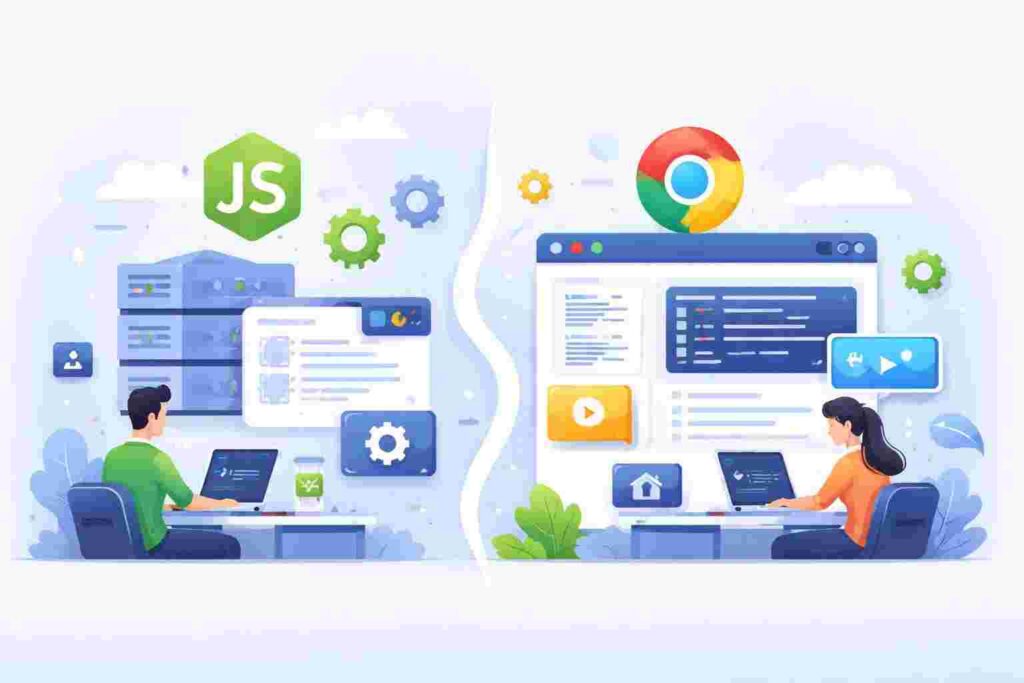
JavaScript is a programming language used primarily for client-side scripting in web browsers, while NodeJS is a runtime environment that allows JavaScript to be run on the server side.
2. Can I use NodeJS for building mobile applications?
While NodeJS is not used directly to build mobile applications, it can be utilized to create backend services that mobile applications interact with.
3. Do I need to learn JavaScript to use NodeJS?
Yes, having a solid grasp of JavaScript is important to effectively work with NodeJS, as it is built on the same language.
4. Is NodeJS suitable for building large applications?
Absolutely! NodeJS is designed for scalability and can manage large applications smoothly, particularly those that require a lot of I/O operations.
5. How does NodeJS handle multiple requests?
NodeJS uses an event-driven, non-blocking I/O model that enables it to handle multiple requests simultaneously without waiting for any single operation to complete.
Conclusion
You should now have a solid understanding of how to install NodeJS on Windows, verify your installation, and create a basic application. With your NodeJS environment set up, you can explore the vast ecosystem of libraries and frameworks available. Dive into building your web applications, APIs, and more. Welcome to the exciting world of NodeJS development!
Additional Learning Resources
To further your knowledge about NodeJS, consider the following resources: