Introduction to NodeJS
Installing NodeJS on Mac: NodeJS is an open-source, cross-platform runtime environment that allows you to run JavaScript on the server side. This technology has gained immense popularity among developers due to its event-driven architecture and non-blocking I/O model, making it perfect for building scalable network applications.
Table of Contents
If you’re a beginner looking to dive into the world of server-side JavaScript, you’ve come to the right place. In this comprehensive guide, we’ll walk you through the process of installing NodeJS on your Mac. By the end of this article, you’ll have everything set up to start building applications using NodeJS.
Why Choose NodeJS?
There are several reasons why developers choose NodeJS over other back-end technologies. One major reason is its ability to handle multiple connections simultaneously with high throughput. This makes NodeJS suitable for applications that require real-time capabilities, such as chat applications and online gaming.
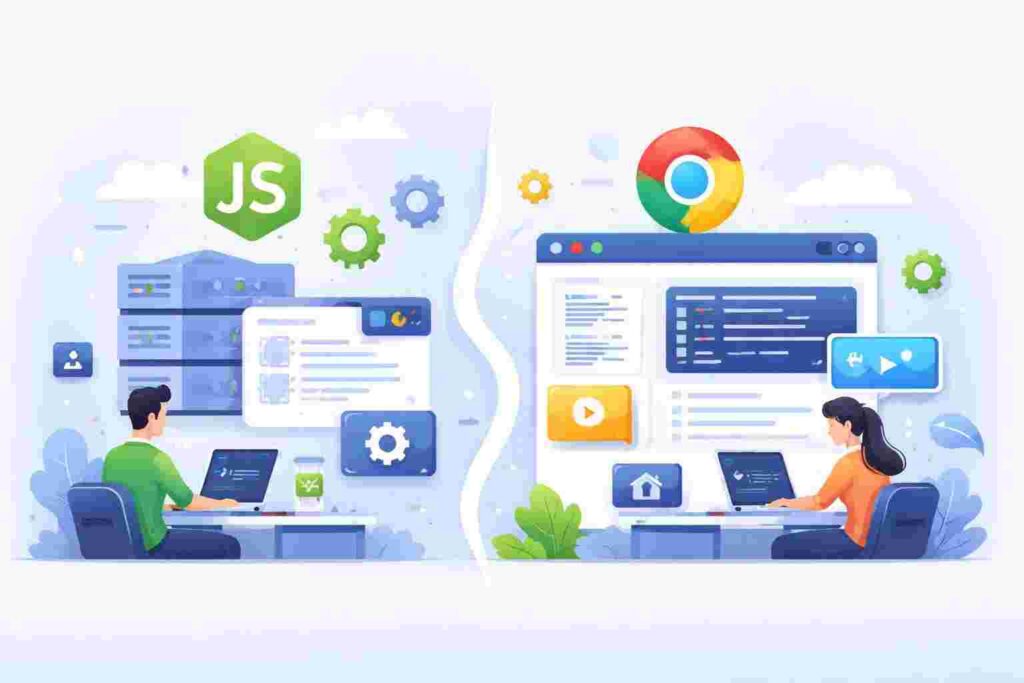
Moreover, NodeJS uses JavaScript, a language that is already familiar to many developers. This means that both front-end and back-end coding can be done in the same language, simplifying the development process.
Pre-requisites Before Installation
Before you start installing NodeJS on your Mac, there are a few prerequisites you should meet. Primarily, ensure your Mac is running a recent version of macOS. As of now, NodeJS works best with the latest versions of MacOS.
Additionally, it’s a good idea to have some basic familiarity with using the Terminal on your Mac, as most of the installation steps will require command line instructions.
Methods to Install NodeJS
There are multiple ways to install NodeJS on a Mac. Each method has its advantages, and you can choose the one that suits you best. Here, we will cover three common methods: using Homebrew, downloading directly from the NodeJS website, and using Node Version Manager (nvm).
Let’s explore these methods in detail, starting with Homebrew, which is a very popular package manager for macOS.
Installing NodeJS Using Homebrew
Homebrew simplifies the installation of software on macOS. If you don’t have it installed yet, follow these steps:
/bin/bash -c "$(curl -fsSL https://raw.githubusercontent.com/Homebrew/install/HEAD/install.sh)" Running this command in the Terminal will install Homebrew. Follow the prompts to complete the installation.
Once Homebrew is installed, you can easily install NodeJS by executing the following command:
brew install nodeThis command will automatically download the latest version of NodeJS and install it on your Mac. Now, let’s break this down:
- brew: This command invokes Homebrew.
- install: This tells Homebrew that you want to install a package.
- node: This is the name of the package you wish to install.
Direct Download from the NodeJS Website
If you prefer manual installations, you can download NodeJS directly from its official website. Navigate to nodejs.org. Here, you will see two versions: LTS (Long-Term Support) and Current.
LTS is recommended for most users because it’s more stable. Click on the macOS Installer to download the .pkg file. After the download is complete, double-click the .pkg file to start the installation process, and follow the on-screen instructions to install NodeJS.
Installing NodeJS Using NVM
NVM (Node Version Manager) is a handy tool that allows you to manage multiple NodeJS versions on a single machine. It’s particularly useful if you are working on projects that require different NodeJS versions.
To install NVM, run the following command in your Terminal:
curl -o- https://raw.githubusercontent.com/nvm-sh/nvm/v0.39.1/install.sh | bashThis command fetches the NVM install script and runs it. After installation, you need to reload your shell configuration:
source ~/.bash_profileor
source ~/.zshrcNow, you can install NodeJS using NVM with:
nvm install nodeThis command will install the latest version of NodeJS. And if you want to install a specific version, you can specify that version number:
nvm install 14.17.0Verifying Your Installation
After you’ve installed NodeJS, it’s crucial to verify that your installation was successful. You can do this by checking the versions of NodeJS and npm (Node Package Manager, installed automatically with NodeJS).
node -vThis command should return the version number of NodeJS installed. Similarly, check npm:
npm -vIf both commands return version numbers, congratulations! You have successfully installed NodeJS on your Mac.
Basic Usage of NodeJS
Now that you have NodeJS installed, let’s look into some basic usage scenarios. One of the first things you can do is run a simple JavaScript program using NodeJS.
echo "console.log('Hello, NodeJS!');" > hello.jsThis command creates a new file named hello.js with a simple console log statement. To run this file with NodeJS, use:
node hello.jsThis will execute your JavaScript file and output: Hello, NodeJS! If you see this message, it confirms your NodeJS is functioning correctly!
Real-World Use Case: Building a Simple Web Server
Let’s take a practical example where you can utilize NodeJS. We’ll set up a basic web server that responds with a message when accessed. Create a file named server.js:
const http = require('http');

const hostname = '127.0.0.1';
const port = 3000;

const server = http.createServer((req, res) => {
  res.statusCode = 200;
  res.setHeader('Content-Type', 'text/plain');
  res.end('Hello World\n');
});

server.listen(port, hostname, () => {
  console.log(`Server running at http://${hostname}:${port}/`);
});
Let’s break down the server code:
- const http = require(‘http’); imports the HTTP module.
- const hostname = ‘127.0.0.1’; sets the server to listen on localhost.
- const port = 3000; defines the port number for the server.
- http.createServer(…) creates the server and defines response behavior.
- Inside this function, res.end(‘Hello World\n’); sends a response back.
- Lastly, server.listen(port, hostname, …); starts the server.
To run this server, simply execute:
node server.jsVisit http://127.0.0.1:3000 in your browser, and you should see the message: Hello World. This is a simple example of how NodeJS can serve web content!
Error Handling in NodeJS
When developing with NodeJS, you’ll inevitably run into errors. Handling these properly is crucial to developing robust applications. One common approach is using try-catch blocks to catch synchronous errors.
try {
  // Code that may throw an error
  const result = riskyFunction();
} catch (error) {
  console.error('Error encountered:', error);
}
This code surrounds potentially faulty code with a try block. If an error is thrown, it will jump to the catch block where you can handle it gracefully, perhaps by logging it as shown.
Advanced Scenarios: Working with Packages
NodeJS shines when it comes to its rich ecosystem of packages. One of the most common tasks is installing and using external libraries. You can leverage npm to manage these packages easily.
npm install expressThis command installs the Express framework, which is a popular choice for building web applications. It allows you to set up a web server with more advanced routing and middleware options than the basic example we discussed earlier.
Integrating Express into your server code would look like this:
const express = require('express');
const app = express();
const port = 3000;

app.get('/', (req, res) => {
  res.send('Hello Express!');
});

app.listen(port, () => {
  console.log(`Server is running on http://localhost:${port}`);
});
This updated code sets up a simple Express application that listens for GET requests at the root URL and sends back the ‘Hello Express!’ response.
FAQs About Installing NodeJS on Mac
1. What if I already have NodeJS installed?
If you already have NodeJS installed, you can check the version using node -v. If an update is required, you can either use Homebrew or nvm to easily manage your NodeJS installation.
2. Can I install multiple versions of NodeJS?
Absolutely! Using NVM is the best way to manage multiple NodeJS versions. You can switch between versions as per your project requirements.
3. Why do I need npm?
npm is the package manager for NodeJS. It allows you to install external libraries and packages, making the development process smoother and more efficient.
4. Is it safe to install NodeJS from the website?
Yes, downloading and installing NodeJS directly from the official NodeJS website is safe and recommended. It ensures you’re getting the latest stable version of the software.
5. How do I uninstall NodeJS?
If you need to uninstall NodeJS, it can be done using Homebrew with brew uninstall node or by removing the NodeJS installation folder if installed manually.
Conclusion
Installing NodeJS on your Mac opens up a world of possibilities for developing web applications and services using JavaScript. Whether you choose to use Homebrew, download directly from the website, or utilize NVM for version management, the process is straightforward.
This guide has taken you through the necessary steps and provided real-world examples to help you get started quickly. Now, it’s your turn to explore the capabilities of NodeJS and create robust applications of your own!