
Running a backend application in local development is simple enough: you launch your Node.js server with npm run dev, start a local database service, and connect them over localhost. But as soon as you transition to a staging or production server, questions quickly multiply:
- How do you ensure your database data persists across server reboots and container upgrades?
- How do you guarantee that your application doesn’t boot and crash before the database finishes initializing?
- How do you handle schema migrations seamlessly without manual intervention?
- How do you safely inject environment secrets without baking them into image layers?
As covered in our cornerstone Docker Handbook for Backend Developers, containerization solves portability, but multi-container orchestration is what turns isolated containers into a cohesive, production-grade application stack.
In this hands-on tutorial, we will build, configure, and deploy a production-ready stack comprising a Node.js (TypeScript/Express) API, a persistent PostgreSQL 16 relational database, and an in-memory Redis cache using Docker Compose.
Table of Contents
- 1. System Architecture & Network Topology
- 2. Production Project Directory Structure
- 3. The Optimized Node.js Dockerfile
- 4. The Production Docker Compose Configuration
- 5. Automated Database Migrations with Health Checks
- 6. Managing Production Secrets & Security
- 7. Starting, Verifying, and Debugging the Stack
- 8. Frequently Asked Questions (FAQ)
1. System Architecture & Network Topology
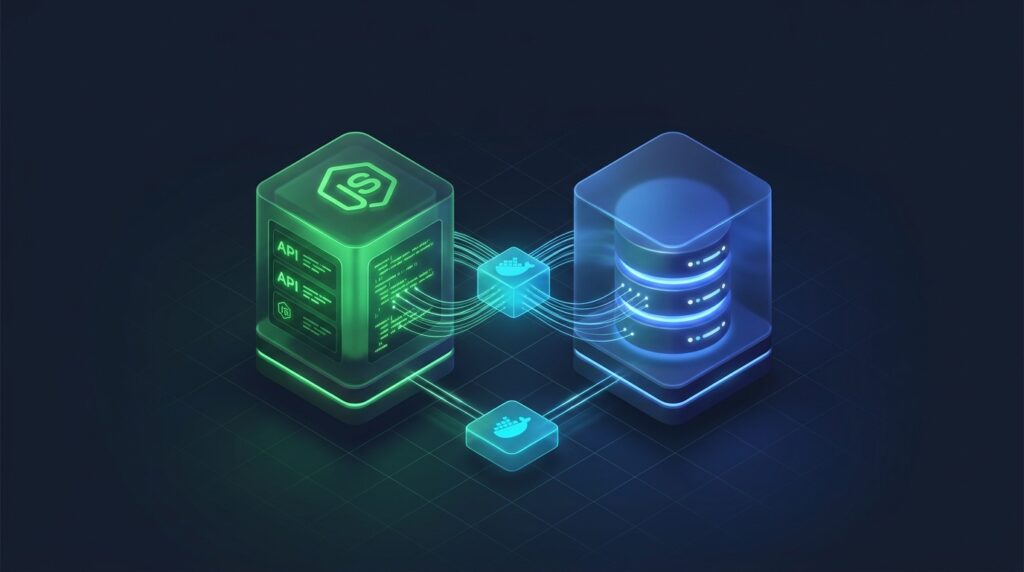
Before writing YAML configurations, let’s understand the network communication model. When using Docker Compose, all services declared in the same network communicate over an internal software-defined bridge:
| Service Name | Container Port | Host Port | Network Visibility | Storage Mode |
|---|---|---|---|---|
api | 3000 | 3000 | Public / Internet facing | Stateless |
postgres | 5432 | None (Isolated) | Internal bridge network only | Named Volume (pgdata) |
redis | 6379 | None (Isolated) | Internal bridge network only | Named Volume (redisdata) |
Crucial Security Rule: Notice that neither PostgreSQL nor Redis exposes ports to the host machine. Only the Node.js API container exposes port 3000. Attackers scanning port 5432 on your server’s public IP will find it completely closed, while your Node.js application accesses PostgreSQL internally via Docker DNS at postgres:5432.
2. Production Project Directory Structure
Organize your repository cleanly to separate application source code from deployment configurations:
my-fullstack-app/
├── .dockerignore
├── .env.example
├── .env.production
├── Dockerfile
├── docker-compose.yml
├── package.json
├── tsconfig.json
├── prisma/
│   └── schema.prisma
└── src/
    ├── server.ts
    ├── db.ts
    └── routes/
        └── users.ts
3. The Optimized Node.js Dockerfile
We use a two-stage build to compile our TypeScript code, prune unnecessary development dependencies, and run under a secure non-root node user:
# ---------------------------------------------
# Stage 1: Build & Compile
# ---------------------------------------------
FROM node:20-alpine AS builder
WORKDIR /app

# Cache dependency installations
COPY package*.json tsconfig.json ./
RUN npm ci

# Copy Prisma schema and generate client
COPY prisma ./prisma/
RUN npx prisma generate

# Copy source and build
COPY src ./src
RUN npm run build

# Remove development dependencies
RUN npm prune --production

# ---------------------------------------------
# Stage 2: Minimal Production Image
# ---------------------------------------------
FROM node:20-alpine AS runner
WORKDIR /app

ENV NODE_ENV=production
RUN apk add --no-cache dumb-init

# Security: Run as non-privileged user
USER node

# Copy built artifacts from builder stage
COPY --chown=node:node --from=builder /app/node_modules ./node_modules
COPY --chown=node:node --from=builder /app/dist ./dist
COPY --chown=node:node --from=builder /app/prisma ./prisma
COPY --chown=node:node package.json ./

EXPOSE 3000

ENTRYPOINT ["dumb-init", "--"]
CMD ["node", "dist/server.js"]
4. The Production Docker Compose Configuration
Below is the complete docker-compose.yml file. It enforces restart policies, persistent volumes, environment mapping, and rigorous database health checks:
version: '3.8'

services:
  # ============================================
  # Application API
  # ============================================
  api:
    build:
      context: .
      dockerfile: Dockerfile
    container_name: app_api
    restart: unless-stopped
    ports:
      - "3000:3000"
    environment:
      - NODE_ENV=production
      - PORT=3000
      - DATABASE_URL=postgresql://${POSTGRES_USER}:${POSTGRES_PASSWORD}@postgres:5432/${POSTGRES_DB}?schema=public
      - REDIS_URL=redis://redis:6379
    depends_on:
      postgres:
        condition: service_healthy
      redis:
        condition: service_started
    networks:
      - internal-app-network

  # ============================================
  # PostgreSQL Relational Database
  # ============================================
  postgres:
    image: postgres:16-alpine
    container_name: app_postgres
    restart: unless-stopped
    environment:
      POSTGRES_USER: ${POSTGRES_USER}
      POSTGRES_PASSWORD: ${POSTGRES_PASSWORD}
      POSTGRES_DB: ${POSTGRES_DB}
    volumes:
      - postgres_data:/var/lib/postgresql/data
    healthcheck:
      test: ["CMD-SHELL", "pg_isready -U ${POSTGRES_USER} -d ${POSTGRES_DB}"]
      interval: 10s
      timeout: 5s
      retries: 5
      start_period: 10s
    networks:
      - internal-app-network

  # ============================================
  # Redis In-Memory Cache
  # ============================================
  redis:
    image: redis:7-alpine
    container_name: app_redis
    restart: unless-stopped
    volumes:
      - redis_data:/data
    networks:
      - internal-app-network

volumes:
  postgres_data:
    driver: local
  redis_data:
    driver: local

networks:
  internal-app-network:
    driver: bridge
5. Automated Database Migrations with Health Checks
One of the most frequent mistakes developers make with Docker Compose is attempting to run database migrations before PostgreSQL has finished booting. Even if the container says “Running”, PostgreSQL takes 3 to 10 seconds to initialize write-ahead logs and socket listeners.
By declaring a health check with pg_isready on the database and specifying condition: service_healthy on the API service, Compose guarantees the Node container will not execute until the database actively responds to ping requests.
To run database migrations before launching the web server, you can add an entrypoint migration script to your package.json:
{
  "scripts": {
    "build": "tsc",
    "db:migrate": "prisma migrate deploy",
    "start": "node dist/server.js",
    "start:prod": "prisma migrate deploy && node dist/server.js"
  }
}
6. Managing Production Secrets & Security
Never commit your production credentials to version control. On your production server, create a .env file directly in your project root with restrictive filesystem permissions (chmod 600 .env):
# .env
POSTGRES_USER=admin_db_user
POSTGRES_PASSWORD=use_a_strong_random_32_character_password
POSTGRES_DB=production_app_db
Docker Compose automatically interpolates variables declared in a local .env file directly into the docker-compose.yml file at startup.
7. Starting, Verifying, and Debugging the Stack
Launch the entire application stack in detached mode using:
# Build images and start containers in the background
docker compose up -d --build
# Inspect the status and health of all running services
docker compose ps
# Stream logs in real-time to monitor startup and queries
docker compose logs -f api
# Verify database connection interactively
docker compose exec postgres psql -U admin_db_user -d production_app_db -c "\dt"
8. Frequently Asked Questions (FAQ)
What happens to my PostgreSQL data if I run docker compose down?
Running docker compose down stops and removes the containers and networks, but your database records remain completely intact inside the named volume (postgres_data). Your data is only erased if you explicitly run docker compose down -v (with the -v volume flag).
How do I create automated backups of the PostgreSQL volume?
You can execute standard pg_dump commands directly into the container from a simple cron job on your host server:
docker compose exec -T postgres pg_dump -U admin_db_user production_app_db | gzip > /backups/db_$(date +%Y%m%d).sql.gzWhy can’t my Node.js app connect to postgres at localhost:5432?
Inside a Docker container, localhost refers to that specific container itself, not your host computer or other containers. In Docker Compose, containers communicate across their shared bridge network using the service name as the hostname (e.g., postgres:5432 or redis:6379).
Written by Mohit Kumar — Software Engineer and Founder of Tech Aventure. Explore our related tutorials on building scalable REST APIs or reach out on our Contact page.
Related Articles
- DevOps Foundations: Master the underlying philosophy with What Is DevOps? A Beginner’s Guide and DevOps Culture: 8 Core Principles Explained.
- Related Resource: Deep dive into our guide on Kubernetes Architecture for Developers: Pods, Services, Deployments & Ingress Demystified.