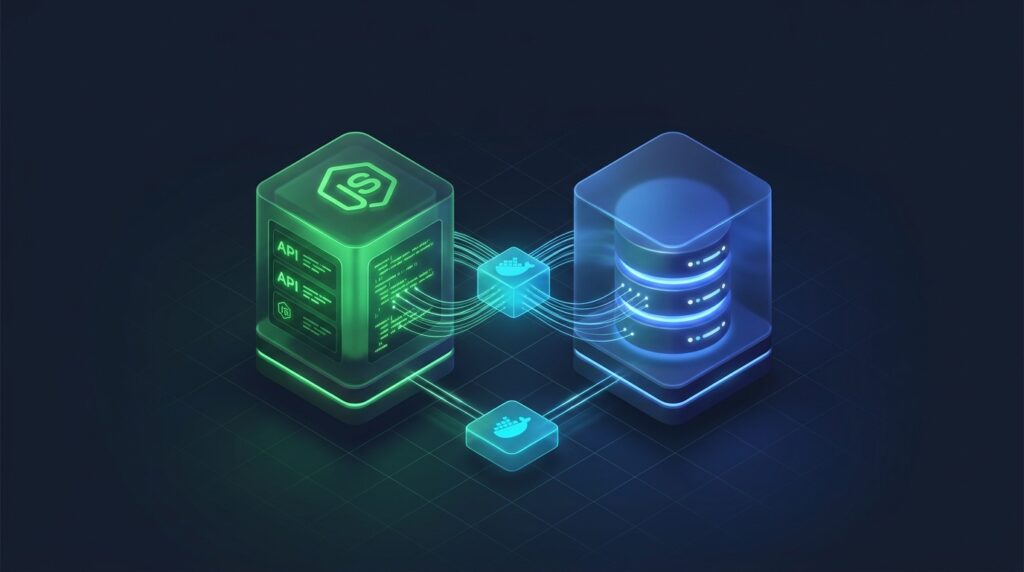

If you have worked in software engineering for more than a few months, you have almost certainly encountered the infamous phrase: “Well, it worked on my machine!”
A few years ago, deploying a backend service meant manually provisioning an operating system, configuring dependencies, wrestling with conflicting runtime versions (like Python 3.9 vs 3.12 or Node 18 vs 20), and praying that the production environment mirrored your local laptop. When something broke, debugging environment drift was often more time-consuming than writing the actual business logic.
Docker revolutionized modern software delivery by standardizing software packaging. A container packages your code, runtime, system tools, libraries, and settings into an isolated, reproducible executable. Whether running on macOS, Windows, an Ubuntu server on Hostinger, or a Kubernetes cluster in AWS, a Docker container behaves predictably everywhere.
In this comprehensive guide, we will cut through the jargon. You will learn the core architectural mental models, how to write minimal production-ready multi-stage Dockerfiles, how to orchestrate multi-service backends using Docker Compose, and the security rules you must follow when running containers in production.
Table of Contents
- 1. Core Concepts: Containers vs Virtual Machines
- 2. Images, Layers, and the Build Cache
- 3. Anatomy of a Production-Ready Multi-Stage Dockerfile
- 4. The Power of .dockerignore
- 5. Multi-Container Orchestration with Docker Compose
- 6. 5 Production Best Practices You Shouldn’t Skip
- 7. Common Docker Debugging Commands & Pitfalls
- 8. Frequently Asked Questions (FAQ)
1. Core Concepts: Containers vs Virtual Machines
Before jumping into terminal commands, it is essential to internalize what a container actually is at the operating system level.
A common misconception among beginner developers is that containers are lightweight Virtual Machines (VMs). They are not.
| Feature | Virtual Machine (VM) | Docker Container |
|---|---|---|
| Architecture | Includes a full guest OS + Hypervisor | Shares the host OS Linux Kernel |
| Startup Time | Minutes (boots entire OS) | Milliseconds to seconds (starts a process) |
| Memory & Storage | Gigabytes per VM | Megabytes (only process dependencies) |
| Isolation | Hardware-level virtualization | Kernel namespaces and control groups (cgroups) |
In Linux, a container is simply a standard host process wrapped in two kernel primitives:
- Namespaces: Provide process isolation (PID, network interfaces, mount points, IPC). The process inside the container believes it is PID 1 on an isolated machine.
- Control Groups (cgroups): Enforce resource limits (memory, CPU, I/O bandwidth), ensuring one hungry service cannot starve the host server.
2. Images, Layers, and the Build Cache
Understanding Docker layers is the difference between a 2-minute build and a 15-second build in your CI/CD pipeline.
A Docker Image is a read-only template containing instructions for creating a container. Images are composed of stacked read-only layers. Each instruction in your Dockerfile (such as FROM, COPY, or RUN) generates a new layer.
When you run docker build, Docker evaluates each instruction against its cache:
- If an instruction and its inputs haven’t changed, Docker reuses the cached layer.
- As soon as a single layer changes (for example, you edited a line in your source code), every subsequent layer’s cache is invalidated and rebuilt from scratch.
Rule of thumb: Always order your Dockerfile instructions from least frequently changed (base OS dependencies, package manager manifests) to most frequently changed (application source code).
3. Anatomy of a Production-Ready Multi-Stage Dockerfile
In development, you need development dependencies, TypeScript compilers, test runners, and build tools. In production, you only need the compiled JavaScript code and runtime dependencies.
Using a multi-stage build lets you use separate build and runtime environments within a single Dockerfile, reducing final production image sizes from 1.2 GB down to under 150 MB.
Here is a complete, production-ready multi-stage Dockerfile for a Node.js / TypeScript backend service:
# ==========================================
# Stage 1: Build & Compile Dependencies
# ==========================================
FROM node:20-alpine AS builder

WORKDIR /usr/src/app

# Copy dependency manifests first to leverage Docker layer caching
COPY package*.json tsconfig.json ./

# Install all dependencies (including devDependencies like TypeScript)
RUN npm ci

# Copy application source code
COPY src/ ./src/

# Compile TypeScript to JavaScript in /dist
RUN npm run build

# Prune devDependencies to keep only production packages
RUN npm prune --production

# ==========================================
# Stage 2: Final Minimal Production Runtime
# ==========================================
FROM node:20-alpine AS runner

WORKDIR /usr/src/app

# Set production environment variables
ENV NODE_ENV=production
ENV PORT=3000

# Install dumb-init to properly handle UNIX signals and process reaping (PID 1)
RUN apk add --no-cache dumb-init

# Security: Never run your application as the root user
USER node

# Copy only production artifacts from builder stage
COPY --chown=node:node --from=builder /usr/src/app/node_modules ./node_modules
COPY --chown=node:node --from=builder /usr/src/app/dist ./dist
COPY --chown=node:node package.json ./

EXPOSE 3000

# Use dumb-init to ensure SIGTERM and SIGINT are forwarded correctly
ENTRYPOINT ["dumb-init", "--"]
CMD ["node", "dist/server.js"]
Notice the critical engineering details in this Dockerfile:
- Alpine Base:
node:20-alpineweighs ~50 MB compared to the standard ~350 MB Debian base. - Multi-Stage Isolation: The TypeScript compiler and build-time packages never touch the final image.
- Non-Root User:
USER nodedrops root permissions, mitigating container-escape vulnerabilities. - Process Reaping:
dumb-inithandles PID 1 duties, ensuring your container cleanly shuts down when receivingSIGTERMfrom Docker or Kubernetes.
4. The Power of .dockerignore
Just as you use .gitignore to keep binary outputs and secrets out of Git, you must create a .dockerignore file in the root of your project.
Without a .dockerignore, running COPY . . will copy your local node_modules (which may contain platform-specific binaries compiled for macOS), .git histories, and sensitive .env files directly into the build context.
# .dockerignore
node_modules
npm-debug.log
dist
build
.git
.gitignore
.env
.env.*
Dockerfile
docker-compose*.yml
README.md
coverage
.vscode
5. Multi-Container Orchestration with Docker Compose
Real-world backends rarely exist in isolation. You usually have a web API, a persistent database (PostgreSQL or MySQL), and a caching layer (Redis). As explained in our guide on building a simple REST server, connecting services cleanly requires proper network orchestration.
Docker Compose lets you define and run multi-container applications using a single declarative YAML file.
Here is a complete, production-grade docker-compose.yml setup configuring a Node.js API, PostgreSQL database with persistent volume storage, and a Redis cache:
version: '3.8'

services:
  # ---------------------------------------------
  # Backend API Service
  # ---------------------------------------------
  api:
    build:
      context: .
      dockerfile: Dockerfile
    restart: unless-stopped
    ports:
      - "3000:3000"
    environment:
      - NODE_ENV=production
      - DATABASE_URL=postgres://app_user:strong_password@postgres:5432/app_db
      - REDIS_URL=redis://redis:6379
    depends_on:
      postgres:
        condition: service_healthy
      redis:
        condition: service_started
    networks:
      - backend-network

  # ---------------------------------------------
  # PostgreSQL Database Service
  # ---------------------------------------------
  postgres:
    image: postgres:16-alpine
    restart: unless-stopped
    environment:
      POSTGRES_USER: app_user
      POSTGRES_PASSWORD: strong_password
      POSTGRES_DB: app_db
    volumes:
      - pgdata:/var/lib/postgresql/data
    healthcheck:
      test: ["CMD-SHELL", "pg_isready -U app_user -d app_db"]
      interval: 10s
      timeout: 5s
      retries: 5
    networks:
      - backend-network

  # ---------------------------------------------
  # Redis In-Memory Cache
  # ---------------------------------------------
  redis:
    image: redis:7-alpine
    restart: unless-stopped
    volumes:
      - redisdata:/data
    networks:
      - backend-network

volumes:
  pgdata:
    driver: local
  redisdata:
    driver: local

networks:
  backend-network:
    driver: bridge
Key Takeaways from this Compose Setup:
- Service Discovery by Name: The backend connects to Postgres using
postgres:5432and Redis usingredis:6379. Docker’s internal DNS automatically resolves service names to container IPs. - Persistent Volumes: The
pgdatavolume guarantees your database records survive container restarts and rebuilds. - Smart Health Checks: The API service waits for Postgres to be fully ready before booting via
condition: service_healthy.
6. 5 Production Best Practices You Shouldn’t Skip
- Pin Specific Base Image Tags: Never use
node:latestorubuntu:latestin production. If an upstream image changes or introduces a breaking vulnerability, your builds can silently break. Always pin exact versions, such asnode:20.12.2-alpine3.19. - Implement Container Health Checks: Configure
HEALTHCHECKin your Dockerfile or compose file so orchestrators (like Docker Swarm, Kubernetes, or AWS ECS) can automatically restart unresponsive containers. - Limit Memory and CPU Resources: Prevent a rogue memory leak from crashing your entire host server by enforcing limits in compose:
deploy:
  resources:
    limits:
      cpus: '0.75'
memory: 512M - Never Bake Secrets Into Images: Hardcoded API keys, JWT secrets, and database credentials inside a Dockerfile are stored forever in layer history. Always inject secrets dynamically at runtime via environment variables or secret managers.
- Scan for Known Vulnerabilities: Regularly scan your container images before pushing to registries using tools like
docker scout quickviewor open-source scanners like Trivy.
7. Common Docker Debugging Commands & Pitfalls
When containers fail or behave unexpectedly, these commands are your daily diagnostic toolkit:
# View live container output logs with timestamps
docker logs -f --tail 100 <container_id_or_name>

# Jump directly into a running container shell for interactive inspection
docker exec -it <container_id_or_name> sh

# Check real-time CPU, memory, and network usage across all containers
docker stats

# Clean up stopped containers, dangling images, and unused networks
docker system prune -f

# Inspect detailed JSON metadata including IP address and mount points
docker inspect <container_id_or_name>
8. Frequently Asked Questions (FAQ)
Why is my Docker image so huge and how can I reduce it?
Large image sizes usually stem from using full Ubuntu/Debian bases instead of Alpine, failing to use .dockerignore (which accidentally copies local node_modules), and keeping build-time tools in the runtime image. Switching to a multi-stage build with an Alpine base typically reduces image size by 70% to 90%.
What is the difference between CMD and ENTRYPOINT?
ENTRYPOINT sets the default executable that will always run when the container starts, while CMD provides default arguments that can easily be overridden from the command line. A common best practice is pairing ENTRYPOINT ["dumb-init", "--"] with CMD ["node", "server.js"].
Should I run databases like PostgreSQL in Docker in production?
For local development and staging, running databases in Docker via named volumes is standard and highly recommended. For enterprise production, managed database services (like AWS RDS, Google Cloud SQL, or DigitalOcean Managed Databases) are generally preferred for automated backups, point-in-time recovery, and multi-region replication. However, if using Docker on a VPS, ensure persistent volumes are backed up regularly to offsite block storage.
How does Docker Compose differ from Kubernetes?
Docker Compose is a tool for defining and running multi-container applications on a single host machine, making it ideal for local development, small VPS deployments, and CI test pipelines. Kubernetes (K8s) is an enterprise container orchestration platform designed to manage containers across a cluster of multiple servers with auto-scaling, self-healing, and rolling updates.
Published by Mohit Kumar — Software Engineer and Founder of Tech Aventure. For questions or deployment feedback, connect via our Contact Page.
Related Architectural Deep Dives
Continue expanding your technical depth with our related engineering guides:
- Related Resource: Deep dive into our guide on Linux Server Security Hardening for Web Developers: SSH Keys, UFW, and Fail2ban.
- Deploying with Docker Compose: Multi-container orchestration for web applications and databases. Explore the complete guide: Deploying with Docker Compose.
- Nginx Reverse Proxy & SSL Hardening: Hardening Nginx reverse proxies with TLS 1.3 and security headers. Explore the complete guide: Nginx Reverse Proxy & SSL Hardening.