Introduction to NodeJS
NodeJS on Linux: NodeJS is a powerful runtime environment that allows developers to execute JavaScript code on the server side. Unlike traditional web applications that run in the browser, NodeJS enables you to write scalable network applications entirely in JavaScript. This guide provides a straightforward approach to install NodeJS on Linux, making it easy for beginners to get started.
Table of Contents
Before diving into the installation process, it’s essential to understand what NodeJS is and why it’s beneficial for modern web development. With a non-blocking I/O model, NodeJS is designed to be efficient and lightweight, particularly suitable for applications that require real-time interaction.
Why Choose NodeJS?
Using NodeJS offers several advantages. Its event-driven architecture makes it perfect for handling multiple connections simultaneously. This is particularly valuable for building applications like chat services, dashboards, or APIs that require consistent data flow.
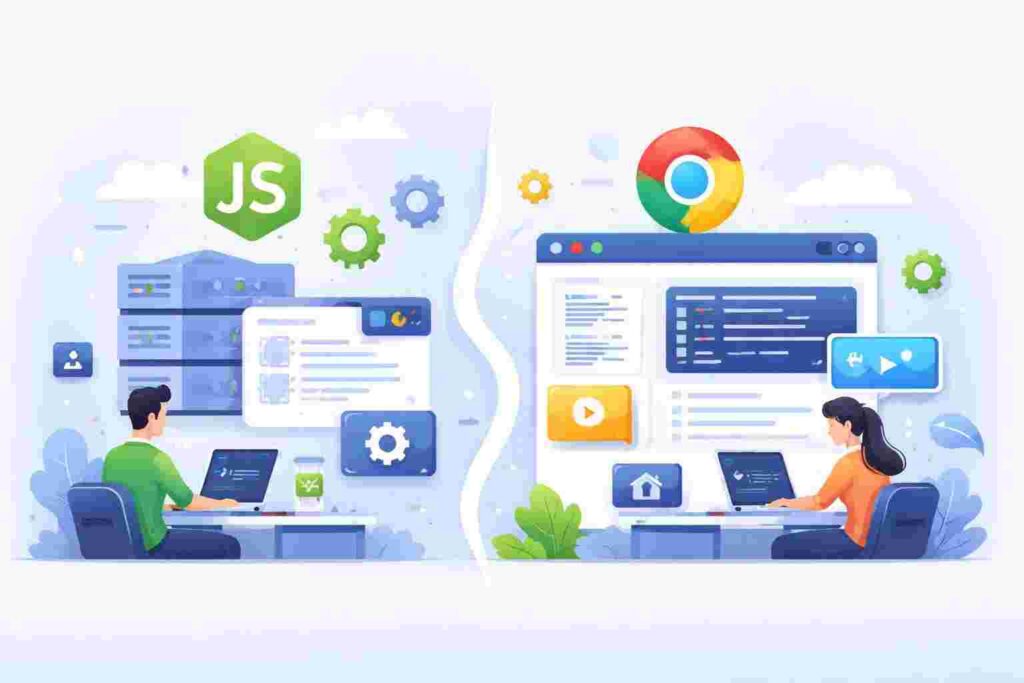
Furthermore, NodeJS leverages the V8 JavaScript engine, which compiles JavaScript directly into machine code for enhanced performance. If you’re developing applications that require fast and scalable backend solutions, NodeJS is an excellent choice.
Preparation for Installation
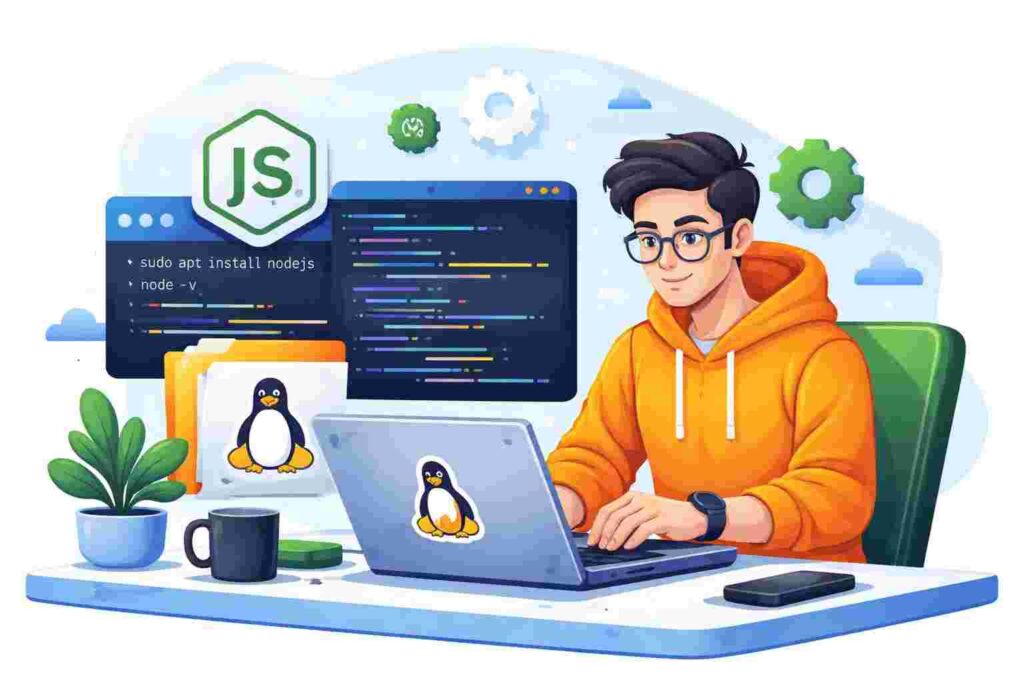
Prior to installing NodeJS on your Linux machine, ensure that your system is up to date. Running a quick update can resolve potential issues during the installation. Open the terminal and execute the following command:
sudo apt update && sudo apt upgrade -yThis command updates the package lists and installs the latest versions of your software. Now, you’re ready to move on to the actual installation process.
Installing NodeJS Using Package Manager
The simplest way to install NodeJS on a Linux system is by using a package manager. Most distributions, such as Ubuntu, Fedora, or CentOS, have NodeJS available in their repositories. For Ubuntu, you can use the following commands:
sudo apt install nodejs npm -yThis command installs both NodeJS and npm, which is the Node Package Manager used to manage JavaScript packages. It’s essential to have npm since it allows you to install libraries and dependencies for your NodeJS applications.
Verifying the Installation
After installation, it’s crucial to verify that NodeJS and npm have been installed correctly. You can do this by checking their versions. Use the following commands:
node -v
npm -v
If both commands return version numbers, your installation was successful!
Updating NodeJS and npm
NodeJS and npm get frequent updates, bringing new features and security enhancements. You can update npm using the following command:
npm install npm@latest -gTo update NodeJS, it’s generally recommended to use a version manager like nvm (Node Version Manager). Nvm allows you to manage multiple NodeJS versions on your system seamlessly.
Installing Node Version Manager (nvm)
To install nvm, execute the following command in your terminal:
curl -o- https://raw.githubusercontent.com/nvm-sh/nvm/v0.39.1/install.sh | bashThis script will download and install nvm to your system. After this, load nvm by executing this command:
source ~/.bashrcNow you can install specific versions of NodeJS using nvm.
Installing a Specific Version of NodeJS
Using nvm, installing a particular version of NodeJS is straightforward. For example, to install NodeJS version 14, use the following command:
nvm install 14After installation, if you want to set that version as the default, simply run:
nvm alias default 14Now you’ve configured your environment to use NodeJS 14 anytime you open a new terminal session.
Real-World Scenario: Building a Simple Web Server
Once you’ve installed NodeJS, you might want to test it by building a simple web server. Below is a minimal code snippet for creating an HTTP server:
const http = require('http');

const hostname = '127.0.0.1';
const port = 3000;

const server = http.createServer((req, res) => {
  res.statusCode = 200;
  res.setHeader('Content-Type', 'text/plain');
  res.end('Hello World\n');
});

server.listen(port, hostname, () => {
  console.log(`Server running at http://${hostname}:${port}/`);
});
This code sets up a basic HTTP server that listens on port 3000 and responds with “Hello World” to all requests. To run the server, save this code in a file called server.js and execute:
node server.jsVisit http://127.0.0.1:3000 in your browser to see the output!
Creating a Project Directory Structure
As you start developing applications, organizing your project files is important. Here’s a basic directory structure for a NodeJS application:
| Folder/File | Purpose |
|---|---|
| node_modules/ | Contains all the installed packages |
| src/ | Source code files |
| package.json | Manages project dependencies and scripts |
| README.md | Documentation and project details |
This structure helps you manage your code better and makes it easier for other developers to navigate the project.
Using npm to Manage Packages
Node.js applications often rely on various third-party libraries. With npm, you can easily install, update, and manage these packages. For instance, to install the Express web framework, you can use:
npm install expressThis command will add Express to your node_modules directory and update your package.json file automatically. Managing dependencies properly keeps your application modular and avoids code duplications.
Debugging and Testing Your Installation
To ensure that everything is working as expected, it’s wise to debug and test your NodeJS applications. The built-in debugger in NodeJS can help:
node inspect server.jsThis command launches the debugger where you can step through your code, inspect variables, and see how your application behaves. Proper debugging ensures you catch issues early in the development process.
Common Troubleshooting Tips
Even after a successful installation, you might face issues while running your NodeJS applications. Here are some common problems and their solutions:
- Permission Errors: If you encounter permission issues when installing packages, consider using
sudoor resolving permissions in your system. - Version Conflicts: Ensure the installed version of packages is compatible with your NodeJS version. Check your
package.jsonfor discrepancies. - Network Issues: Sometimes, npm might fail to fetch packages due to network configurations. Verify your network connection and try again.
Frequently Asked Questions (FAQ)
1. What is NodeJS used for?
NodeJS is primarily used for building server-side applications. It is effective for applications needing real-time capabilities like chat applications or collaborative tools.
2. Can I install multiple versions of NodeJS?
Yes, using Node Version Manager (nvm), you can manage and switch between multiple NodeJS versions easily.
3. How do I uninstall NodeJS?
You can uninstall NodeJS by running: sudo apt remove nodejs npm on Ubuntu or using nvm uninstall for versions managed by nvm.
4. How do I update my NodeJS version?
If you’ve installed NodeJS using nvm, simply run nvm install version. For other installations, check the official installation instructions.
5. What is npm?
npm stands for Node Package Manager, and it is a tool that helps you manage and install libraries and packages for your NodeJS applications.